How to Transfer Files from PC to iPhone Wirelessly
Move documents, photos, videos, and folders from a Windows PC to an iPhone over Wi-Fi. Compare direct transfer, Apple Devices, iCloud Drive, and SMB.
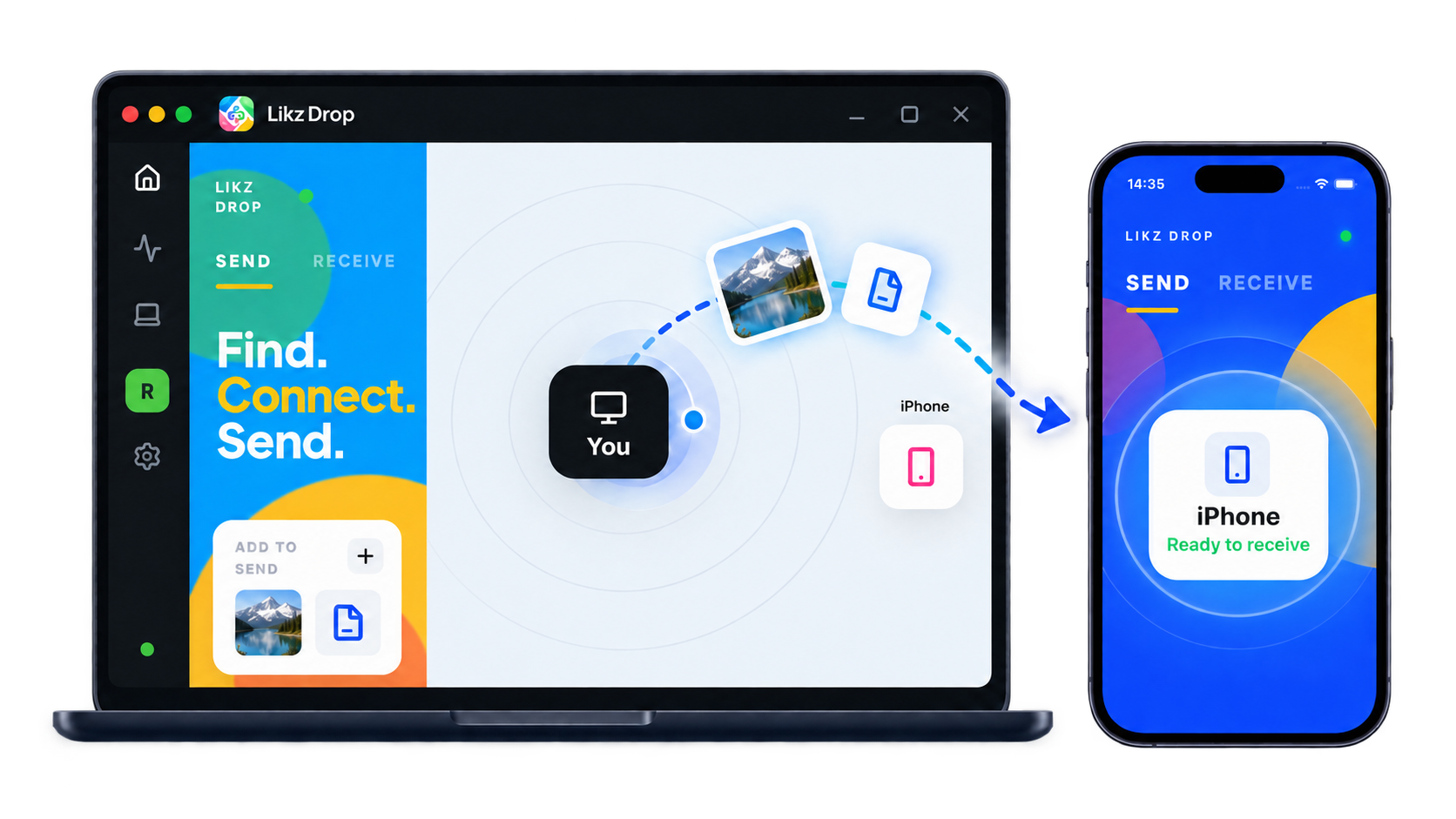
You have a folder on your Windows PC and need it on your iPhone before you leave. The cable is somewhere else, email rejects the video, and uploading everything to cloud storage just to download it again feels wasteful. The good news: you can transfer files from PC to iPhone wirelessly, but the right method depends on whether the devices share a network, whether you want a cloud copy, and where the file should appear on the phone.
The short answer
For a quick wireless handoff, use a cross-platform transfer app on both devices. It lets the PC send the original file and gives the iPhone a clear accept step. When both devices are on the same Wi-Fi, the transfer can stay on the local network. If they are in different places, a nickname-based send can route across networks instead.
Apple’s own route is the Apple Devices app for Windows. It can sync over Wi-Fi after the iPhone and PC have been connected and configured, but file sharing is tied to iPhone apps that support it. iCloud Drive is useful when you want the file stored and synchronized in the cloud. A Windows shared folder is another local option, though it takes more setup and is better suited to people comfortable managing network shares.
Choose the method that matches the job
| Method | Best for | Needs internet? | Main tradeoff |
|---|---|---|---|
| Cross-platform transfer app | Fast, direct handoffs and large files | No on the same LAN; yes across networks | Install the app on both devices |
| Apple Devices over Wi-Fi | Files meant for a compatible iPhone app | No after setup on the same network | Initial connection and app-specific file sharing |
| iCloud Drive | Files you want available later on multiple devices | Yes | Upload, storage allowance, and download time |
| Windows file share (SMB) | Repeated access to a PC folder at home or work | No on the same LAN | More network and permission setup |
| Browser share link | Sending to an iPhone without installing an app | Depends on the connection | Sender must keep the live share running |
For a one-time send, optimize for the fewest moving parts. For ongoing synchronization, cloud storage may be worth the extra trip. If local speed matters most, keep both devices on the same trusted Wi-Fi and transfer directly.
Method 1: transfer directly with Likz Drop
Likz Drop is built for cross-platform transfers between Windows, macOS, Android, and iPhone. Nearby devices can discover each other over the LAN, and the transfer runs at full Wi-Fi speed rather than uploading the file to cloud storage first. Transfers are end-to-end encrypted with ChaCha20-Poly1305 and use BLAKE3 for key derivation.
To transfer files from PC to iPhone wirelessly:
- Download Likz Drop on the Windows PC and iPhone.
- Open it on both devices. For the simplest local transfer, connect both to the same Wi-Fi network.
- On the PC, choose the files or folder you want to send.
- Select the iPhone when it appears as a nearby device.
- Accept the request on the iPhone and choose where to save the received items.
- Keep both devices awake until the transfer finishes.
Guest mode works without sign-up. If the transfer is interrupted, resumable transfers avoid throwing away completed progress. The received item is the original file rather than a chat-app preview or recompressed copy.
When the PC and iPhone are on different networks, you can send by nickname. That path uses the internet but keeps the same workflow without requiring a temporary cloud folder.
For personal, school, and charity use, Likz Drop is free forever. Commercial use—including client media, paid deliverables, or sharing with teammates—requires Pro at $20 per user per month or $200 per user per year. The full distinction is on the pricing page.
Method 2: use Apple Devices over Wi-Fi
Apple Devices is Apple’s Windows app for managing an iPhone or iPad. Apple documents file transfer through the Files section: you select an iPhone app that supports file sharing, then drag files into that app. Apple also supports connecting the device over Wi-Fi, but the first setup commonly involves connecting the iPhone to the PC and enabling Wi-Fi syncing.
This route makes sense when you already use Apple Devices and the destination app appears in its file-sharing list. It is less general because the file is associated with a compatible app on the iPhone.
A practical setup looks like this:
- Install and open Apple Devices on Windows.
- Connect and trust the iPhone, then enable the available Wi-Fi sync option.
- Put the PC and iPhone on the same Wi-Fi network.
- Select the iPhone in Apple Devices, open Files, and choose a compatible app.
- Drag the files from Windows into that app’s document area.
If the app you need is not listed, use a direct transfer app, iCloud Drive, or a network share instead.
Method 3: copy through iCloud Drive
iCloud Drive is the sensible choice when “wirelessly” also means “available later.” Install iCloud for Windows, turn on iCloud Drive, and copy the files into its folder on the PC. After the upload finishes, open the Files app on the iPhone and look under iCloud Drive.
The benefit is persistence: the file remains in cloud storage and can appear on other signed-in devices. The cost is an upload followed by a download, plus the need for enough iCloud storage and a reliable connection. If you need the item offline later, download it to the iPhone before leaving.
Method 4: connect to a Windows shared folder
The iPhone Files app can connect to a file server, including an SMB share exposed by Windows. This keeps the traffic on your local network and is useful when you regularly browse the same PC folder from the phone.
On Windows, share a narrowly scoped folder with only the account that needs it and note the PC’s local name or IP address. On the iPhone, open Files, connect to the SMB server, and sign in with that Windows account. Use this only on a trusted network, and turn off the share when you no longer need it.
What about Bluetooth, email, and messaging apps?
Bluetooth pairing between Windows and iPhone does not provide a general AirDrop-style inbox for arbitrary files. Wi-Fi-based transfer is the practical route.
Email is fine for a small document but awkward for folders, long videos, or photo batches. Messaging apps may compress media. If original quality matters, use a transfer tool or the app’s document/file option.
AirDrop itself is designed around Apple devices, so a Windows PC does not become an AirDrop sender just because it has Wi-Fi and Bluetooth. A cross-platform app fills that gap without pretending Windows is part of Apple’s AirDrop system.
Where files arrive on the iPhone
iOS does not expose one desktop-style file system to every app. A PDF or archive may be saved in Files, while media can be exported to Photos. Apple Devices transfers belong to the compatible app selected during the transfer. Check On My iPhone, Downloads, or your chosen folder; use the Share sheet when another app needs the item.
Fix common wireless transfer problems
If the devices cannot see each other, confirm they share the same Wi-Fi and are not isolated on a guest network. A VPN can change local routing. On Windows, allow the transfer app through the firewall on private networks, keep the iPhone app open, and prevent sleep during a large send.
If a transfer stalls, move closer to the access point, check free storage on the iPhone, and reconnect. Likz Drop supports resume. For iCloud Drive, confirm the PC upload has completed before looking for the file on the phone.
A simple decision rule
Use direct transfer for a fast handoff without a cloud copy; Apple Devices for a compatible iPhone app; iCloud Drive for synchronization and later access; or SMB for recurring access to a trusted Windows folder. A transfer moves the file now, while cloud storage keeps another copy available later.
FAQ
Can I transfer files from PC to iPhone wirelessly without iTunes?
Yes. You can use a cross-platform transfer app, iCloud Drive, the Apple Devices app over Wi-Fi, or an SMB file share. The best choice depends on whether you want a direct handoff, cloud synchronization, or access to a shared PC folder.
Can I send a file to an iPhone that does not have the app?
Yes. Likz Drop can create a private browser share link. The recipient opens it in the browser and needs no app or account. The link stays live only while the sender is actively sharing and disappears immediately when the sender stops.
Will a wireless transfer reduce photo or video quality?
Not when the method transfers the original file. Direct file transfer and cloud-drive copying do not need to re-encode the content. Messaging apps may compress media, so use their document/file mode or a dedicated file-transfer method when the original matters.